Recommended Kidddo Setup
This page outlines Kidddo’s recommended out-of-the-box setup — the fastest way to get started without needing to make a lot of decisions.
This setup is used by many organizations for smooth check-in and optional label printing. You can customize devices, printers, or workflows later — this guide just covers the easiest way to get started.
What you'll need - Recommended Hardware
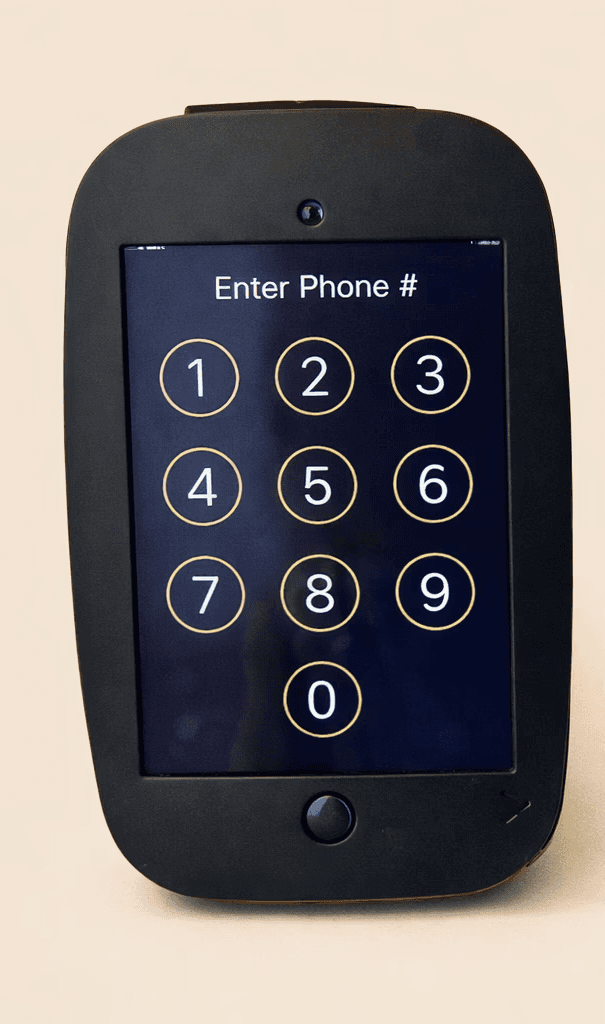
1. Tablet (check-in kiosk)
Option A (Most common)
Wi-Fi only is sufficient
Option B (Android)
Both of these devices are fast, stable, and work well with Kidddo’s kiosk and monitor views.
1. Tablet (check-in kiosk)
Option A (Most common)
Wi-Fi only is sufficient
Option B (Android)
Both of these devices are fast, stable, and work well with Kidddo’s kiosk and monitor views.
1. Tablet (check-in kiosk)
Option A (Most common)
Wi-Fi only is sufficient
Option B (Android)
Both of these devices are fast, stable, and work well with Kidddo’s kiosk and monitor views.
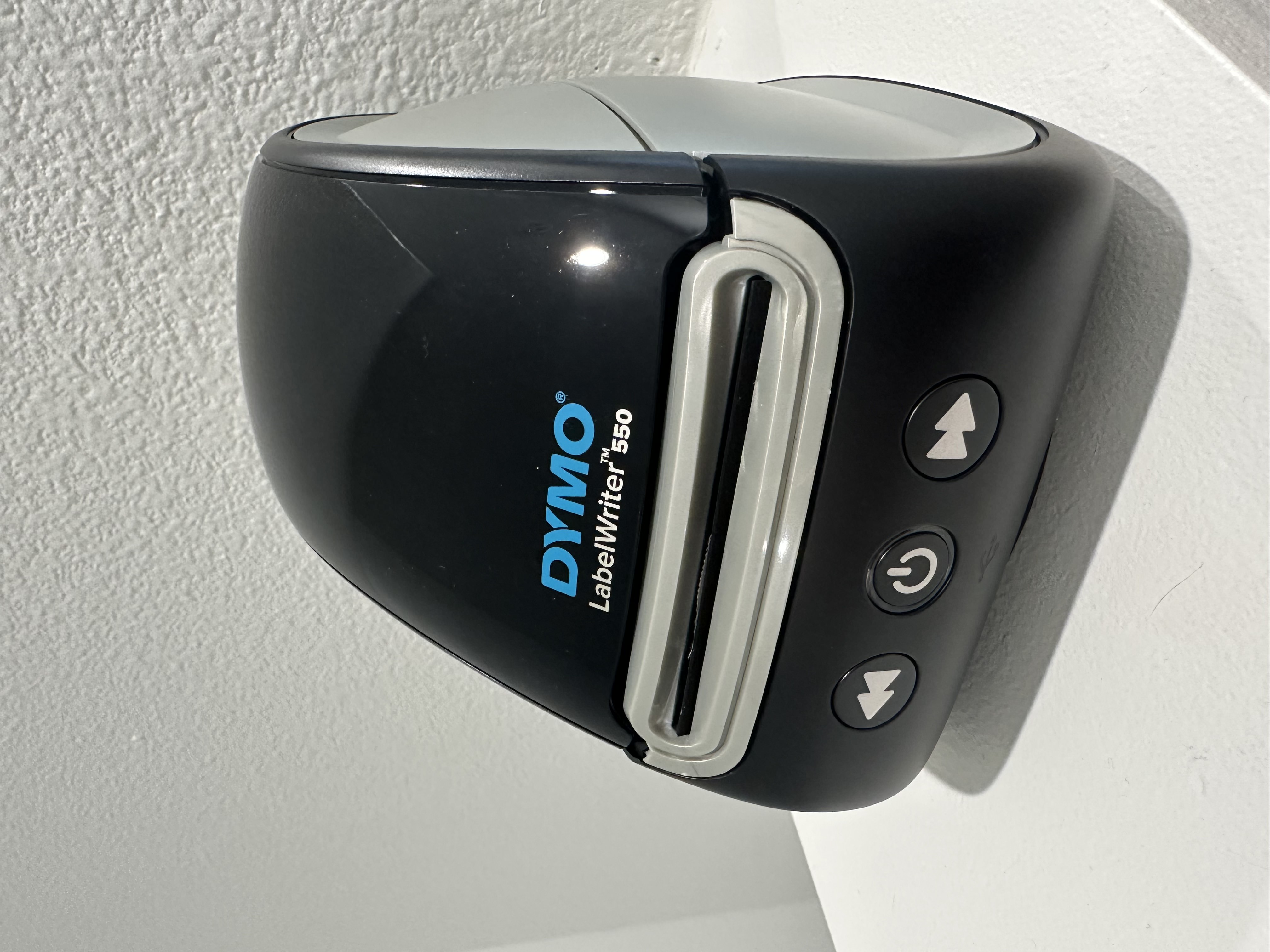
2. Label Printer
For label printing, we recommend USB-connected printers for the most consistent results.
Recommended models
DYMO LabelWriter 450 or 550
Brother QL-800 Bluetooth printing is supported in some setups, but USB is more predictable — especially for first-time use.
2. Label Printer
For label printing, we recommend USB-connected printers for the most consistent results.
Recommended models
DYMO LabelWriter 450 or 550
Brother QL-800 Bluetooth printing is supported in some setups, but USB is more predictable — especially for first-time use.
2. Label Printer
For label printing, we recommend USB-connected printers for the most consistent results.
Recommended models
DYMO LabelWriter 450 or 550
Brother QL-800 Bluetooth printing is supported in some setups, but USB is more predictable — especially for first-time use.
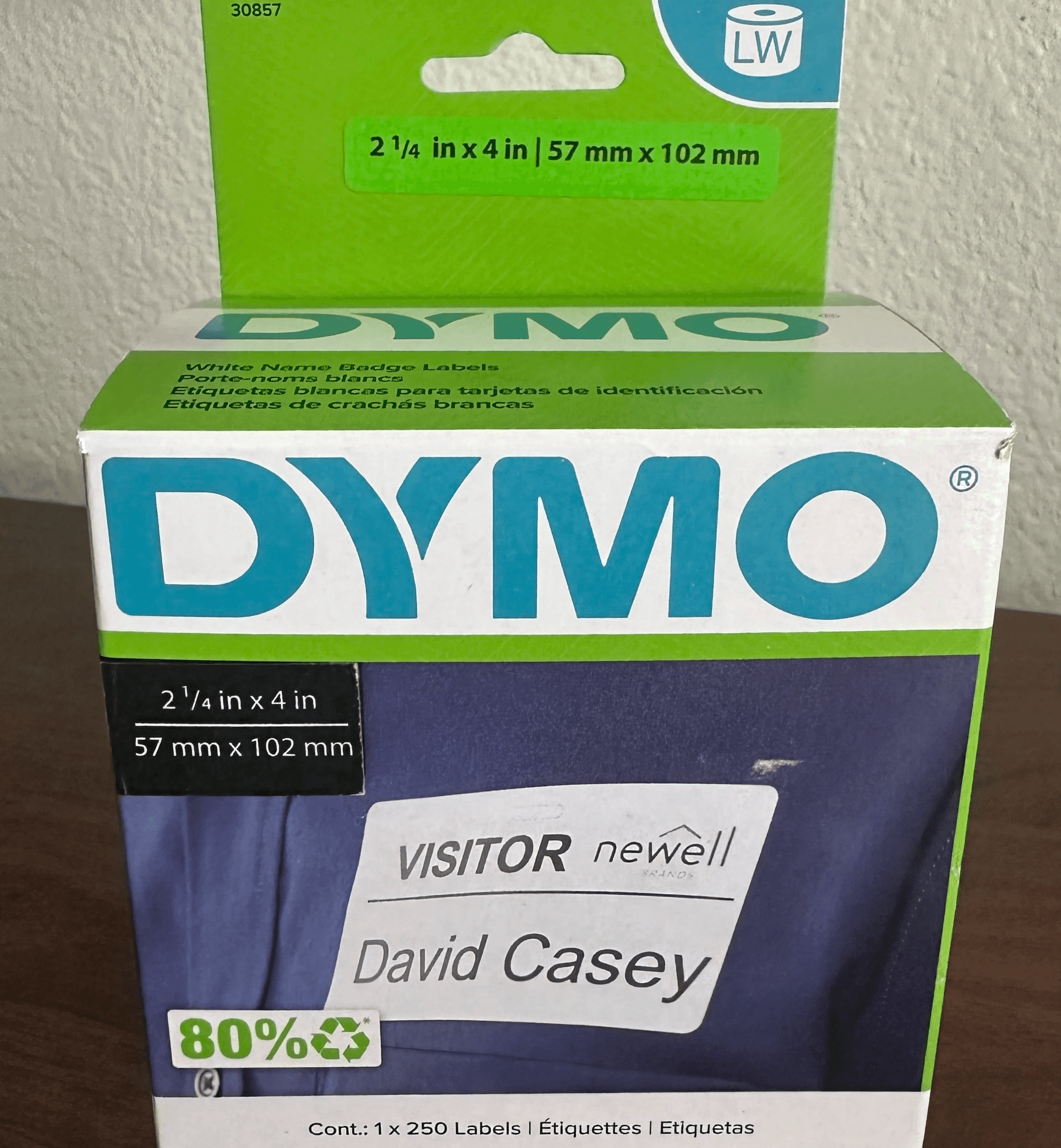
3. Labels
Choose based on your printer:
DYMO
DYMO 30256 (2-5/16” × 4”; 59mm x 104mm)
Brother
Brother DK-1202 (62mm × 100mm)
These sizes align with Kidddo’s default label templates and avoid sizing issues during setup.
3. Labels
Choose based on your printer:
DYMO
DYMO 30256 (2-5/16” × 4”; 59mm x 104mm)
Brother
Brother DK-1202 (62mm × 100mm)
These sizes align with Kidddo’s default label templates and avoid sizing issues during setup.
3. Labels
Choose based on your printer:
DYMO
DYMO 30256 (2-5/16” × 4”; 59mm x 104mm)
Brother
Brother DK-1202 (62mm × 100mm)
These sizes align with Kidddo’s default label templates and avoid sizing issues during setup.
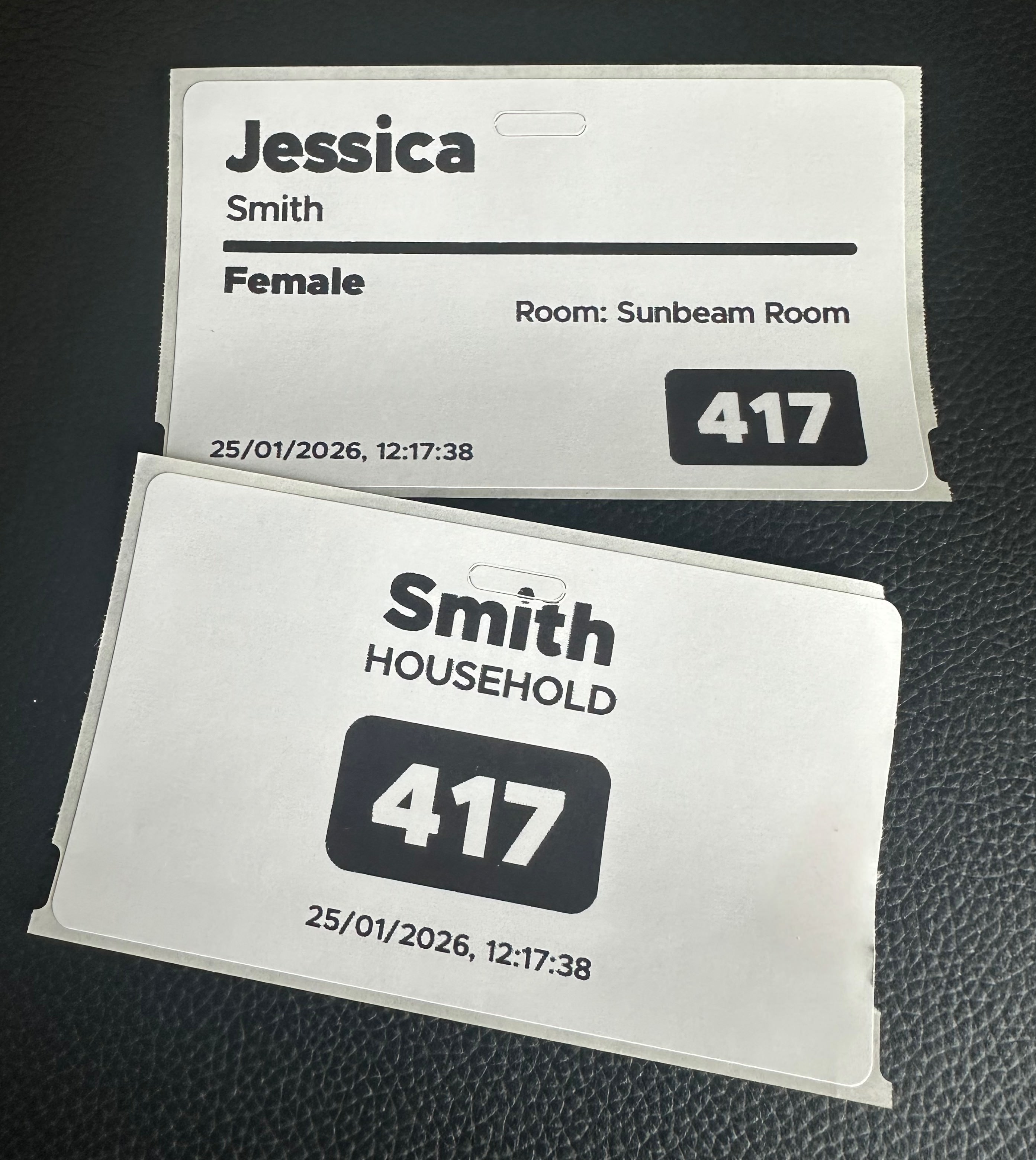
What gets printed
What gets printed
Kidddo supports printing one or multiple labels per check-in.
Kidddo supports printing one or multiple labels per check-in.
Common examples include:
Common examples include:

Child label (name, room/grade, security code)
Child label (name, room/grade, security code)
Child label (name, room/grade, security code)
Parent label (matching security code)
Parent label (matching security code)
Parent label (matching security code)
You control:
You control:
How many labels print
How many labels print
How many labels print
What information appears
What information appears
What information appears
Whether labels are used at all
Whether labels are used at all
Whether labels are used at all
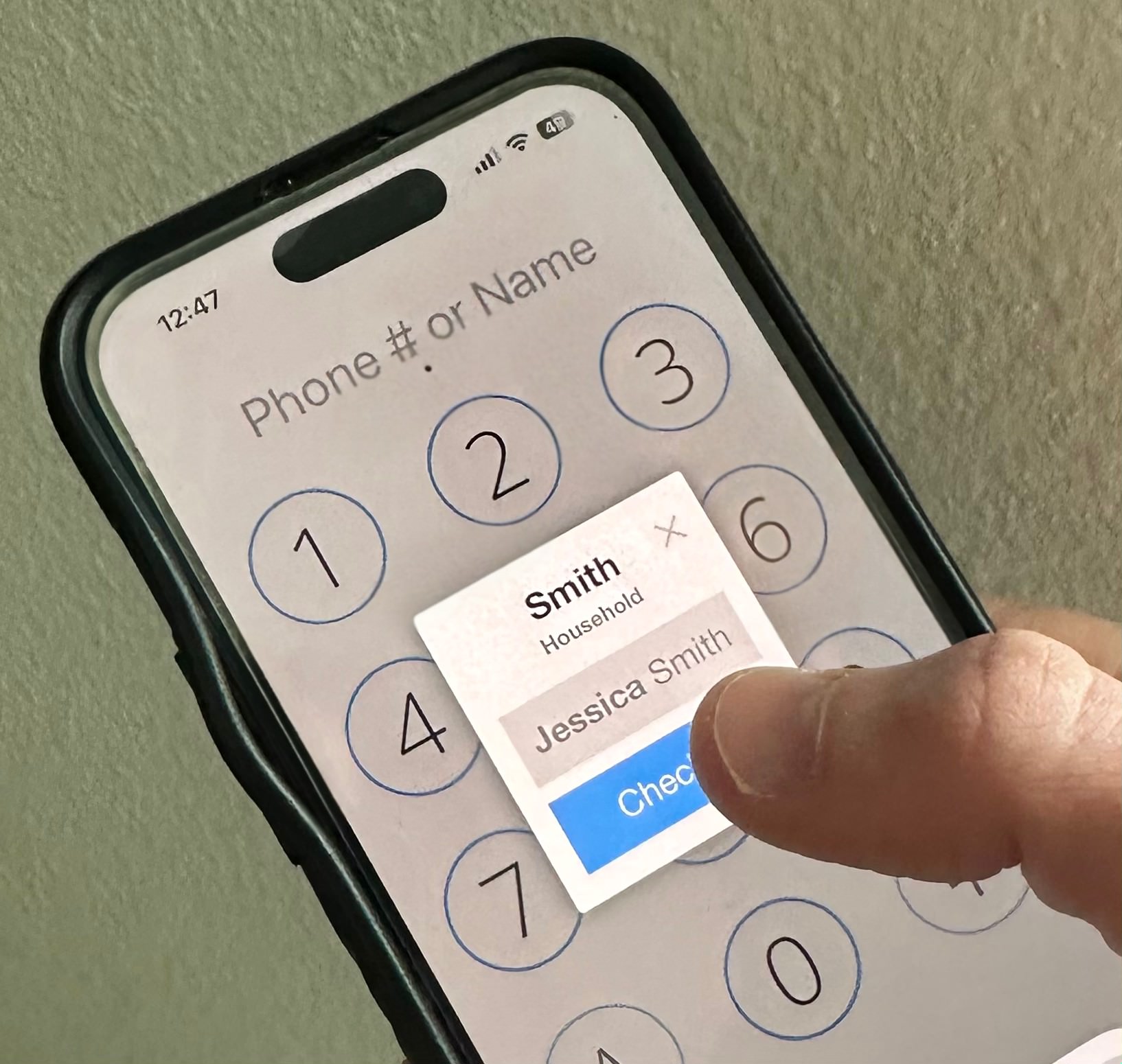
How the flow works
How the flow works
A typical check-in looks like this:
A typical check-in looks like this:
Someone approaches the kiosk
Someone approaches the kiosk
Someone approaches the kiosk
Finds their household or child
Finds their household or child
Finds their household or child
Completes check-in
Completes check-in
Completes check-in
Labels print automatically (if enabled)
Labels print automatically (if enabled)
Labels print automatically (if enabled)
Child proceeds to their assigned space
Child proceeds to their assigned space
Child proceeds to their assigned space
Check-in can be done at an on-site kiosk, from a parent’s phone, with staff assistance — or any combination of the three.
Check-in can be done at an on-site kiosk, from a parent’s phone, with staff assistance — or any combination of the three.
Setup Kidddo in 4 Steps
Set up in minutes and start checking kids in today.
1.
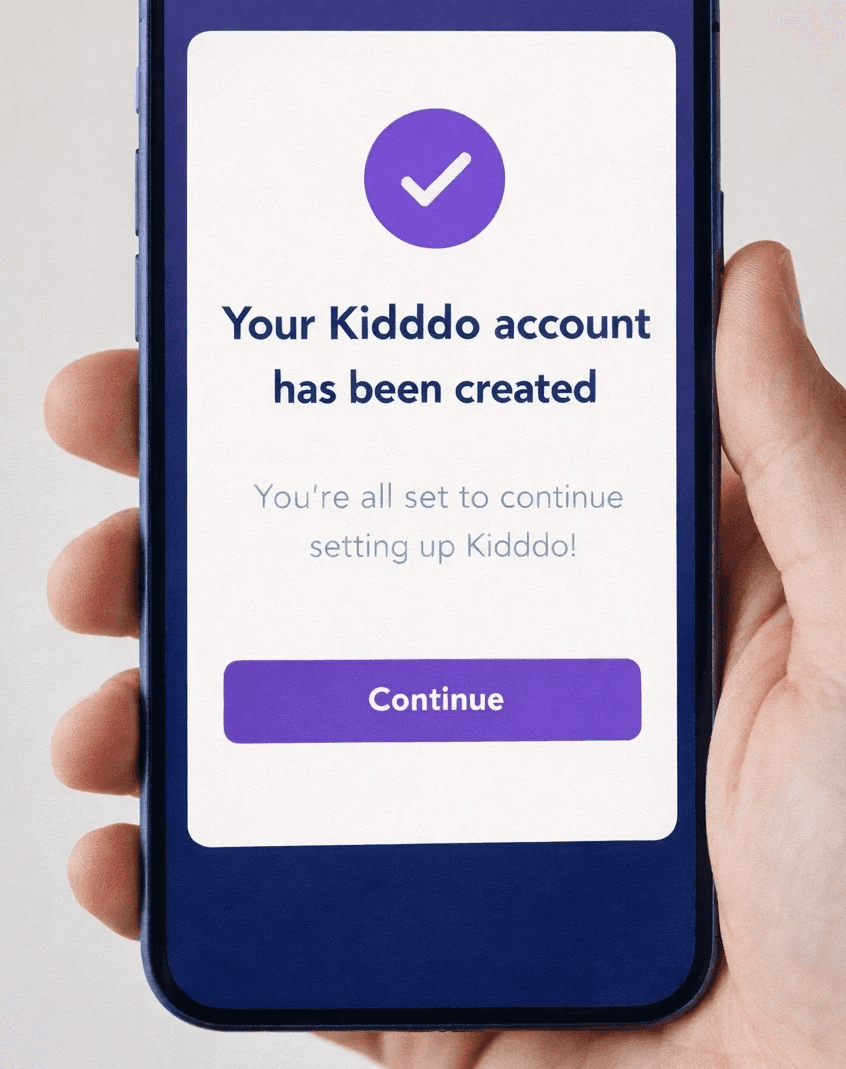
Create Your Account
Start with a free trial: 👉 https://kidddo.com/signup
2.
Install the Kidddo Print App (If Using Labels)
3.
Set Label Quantity
4.
Run a Test Check-In
Setup Kidddo in 4 Steps
Set up in minutes and start checking kids in today.
1.
Create Your Account
Start with a free trial: 👉 https://kidddo.com/signup
2.
Install the Kidddo Print App (If Using Labels)
3.
Set Label Quantity
4.
Run a Test Check-In
Setup Kidddo in 4 Steps
Set up in minutes and start checking kids in today.
1.
Create Your Account
Start with a free trial: 👉 https://kidddo.com/signup
2.
Install the Kidddo Print App (If Using Labels)
3.
Set Label Quantity
4.
Run a Test Check-In
Setup Kidddo in 4 Steps
Set up in minutes and start checking kids in today.
1.
Create Your Account
Start with a free trial: 👉 https://kidddo.com/signup
2.
Install the Kidddo Print App (If Using Labels)
3.
Set Label Quantity
4.
Run a Test Check-In

Customizing Beyond the Recommended Setup
Customizing Beyond the Recommended Setup
The setup above is intentionally simple, but it’s not a limitation. Kidddo also supports:
The setup above is intentionally simple, but it’s not a limitation. Kidddo also supports:
Multiple kiosks
Multiple kiosks
Multiple kiosks
Multiple printers
Multiple printers
Multiple printers
Assisted check-in workflows
Assisted check-in workflows
Assisted check-in workflows
Label-free check-in
Label-free check-in
Label-free check-in
Different setups by room or program
Different setups by room or program
Different setups by room or program
Once you're familiar with the system, you can adapt the system to fit your needs.
Once you're familiar with the system, you can adapt the system to fit your needs.
Common questions
Do I have to use labels?
No — label printing is optional and can be disabled at any time.
Do I need special hardware?
Can I print more than one label per check-in?
Do I have to use labels?
No — label printing is optional and can be disabled at any time.
Do I need special hardware?
Can I print more than one label per check-in?